Retrieving Your Schedule
There are two primary ways to export your schedule from Workday depending on whether your classes are finalized or still in the planning phase.
Registered Courses
- 1
Log in to your Workday account
- 2
Navigate to Student in the sidebar
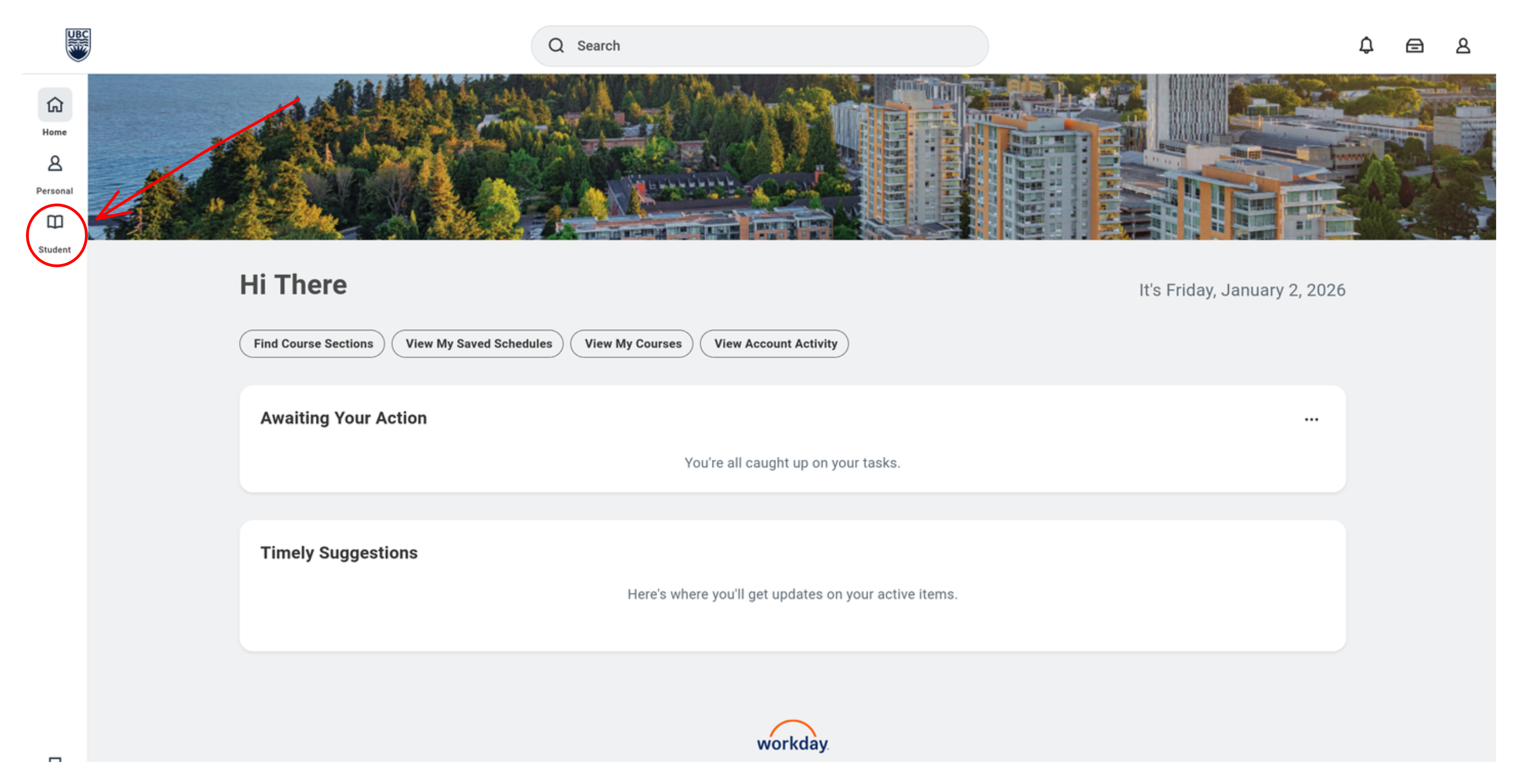
- 3
Under Student, select Academics
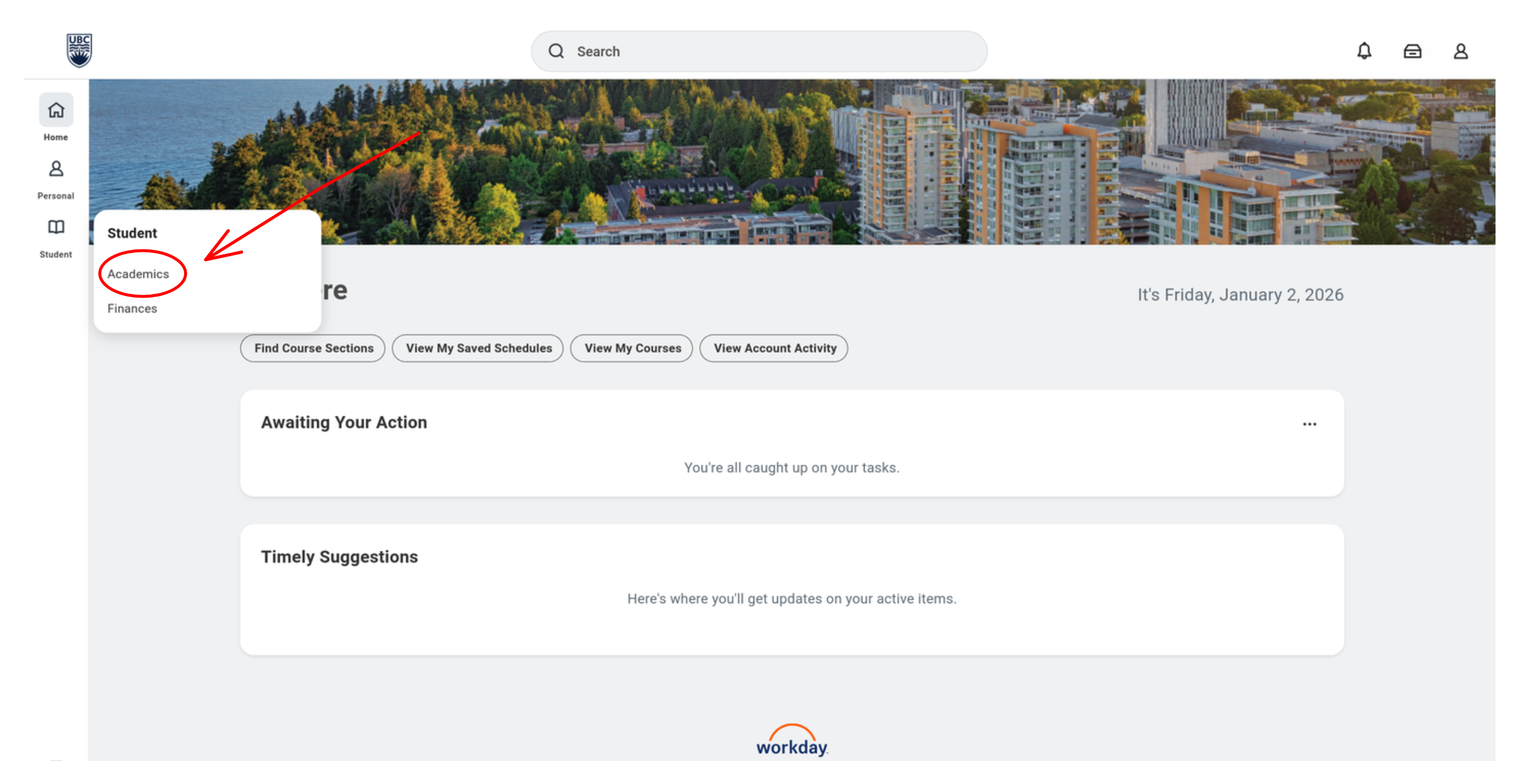
- 4
Under Academics, select Registration & Courses
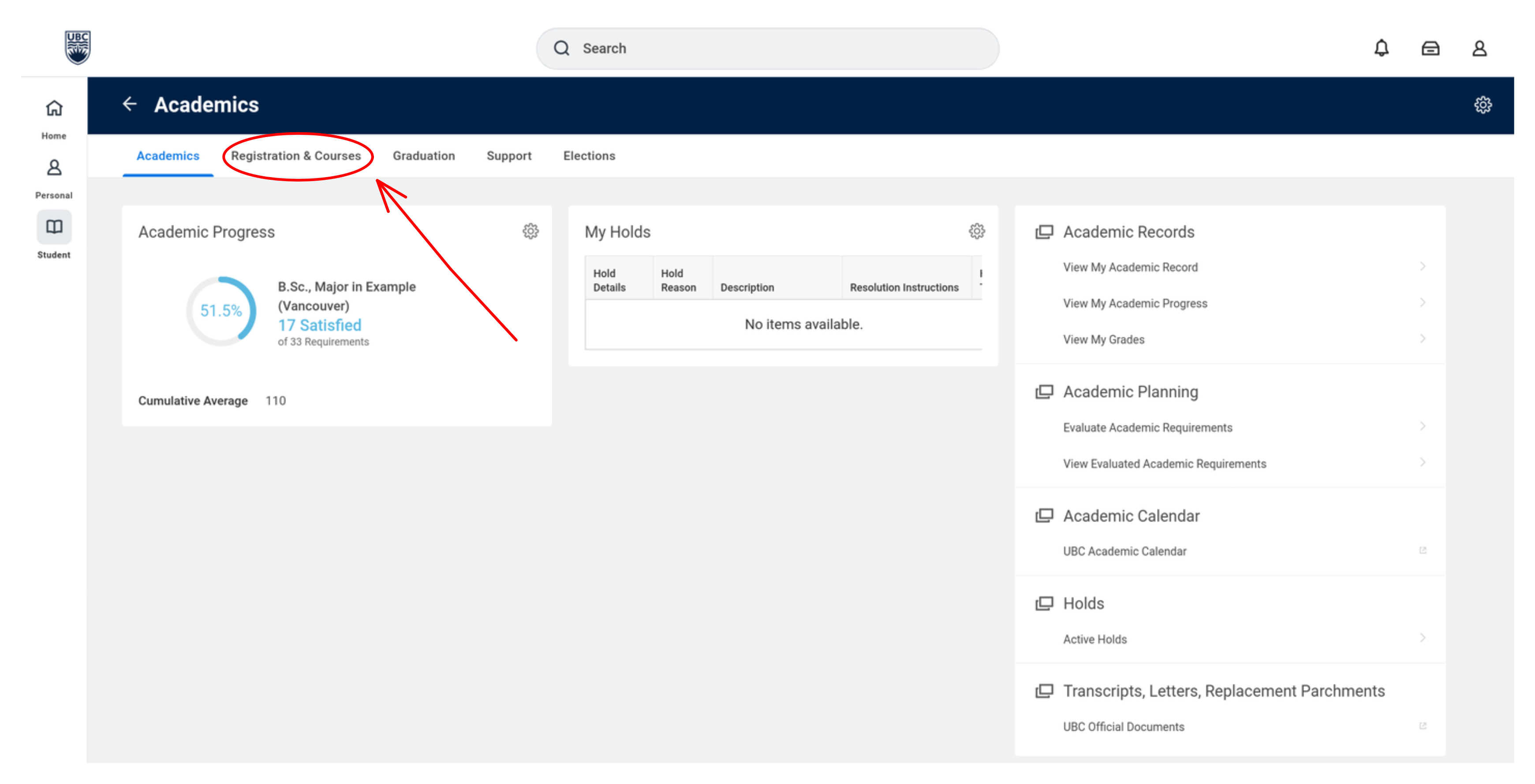
- 5
Under Registration, select View My Courses
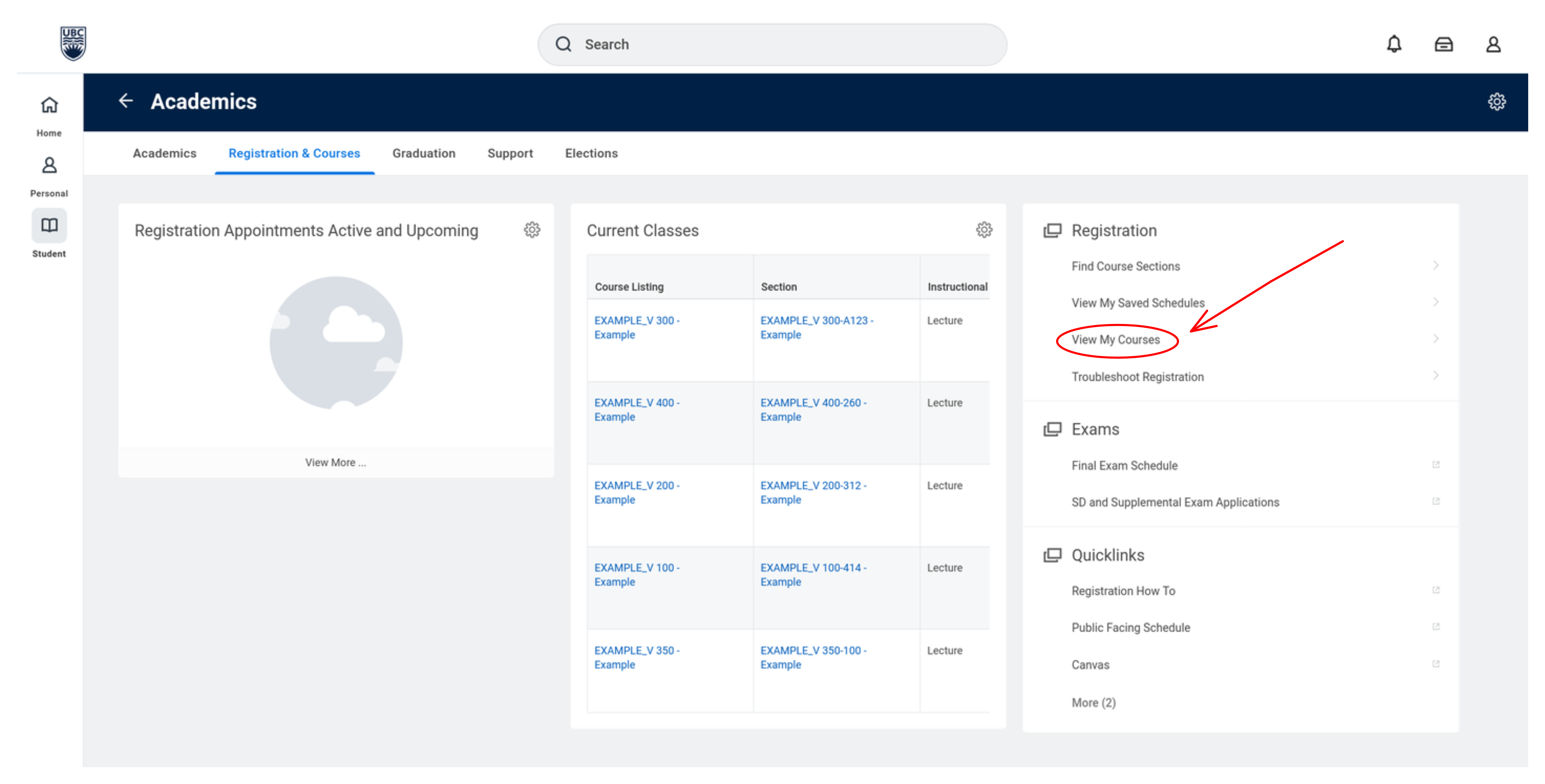
- 6
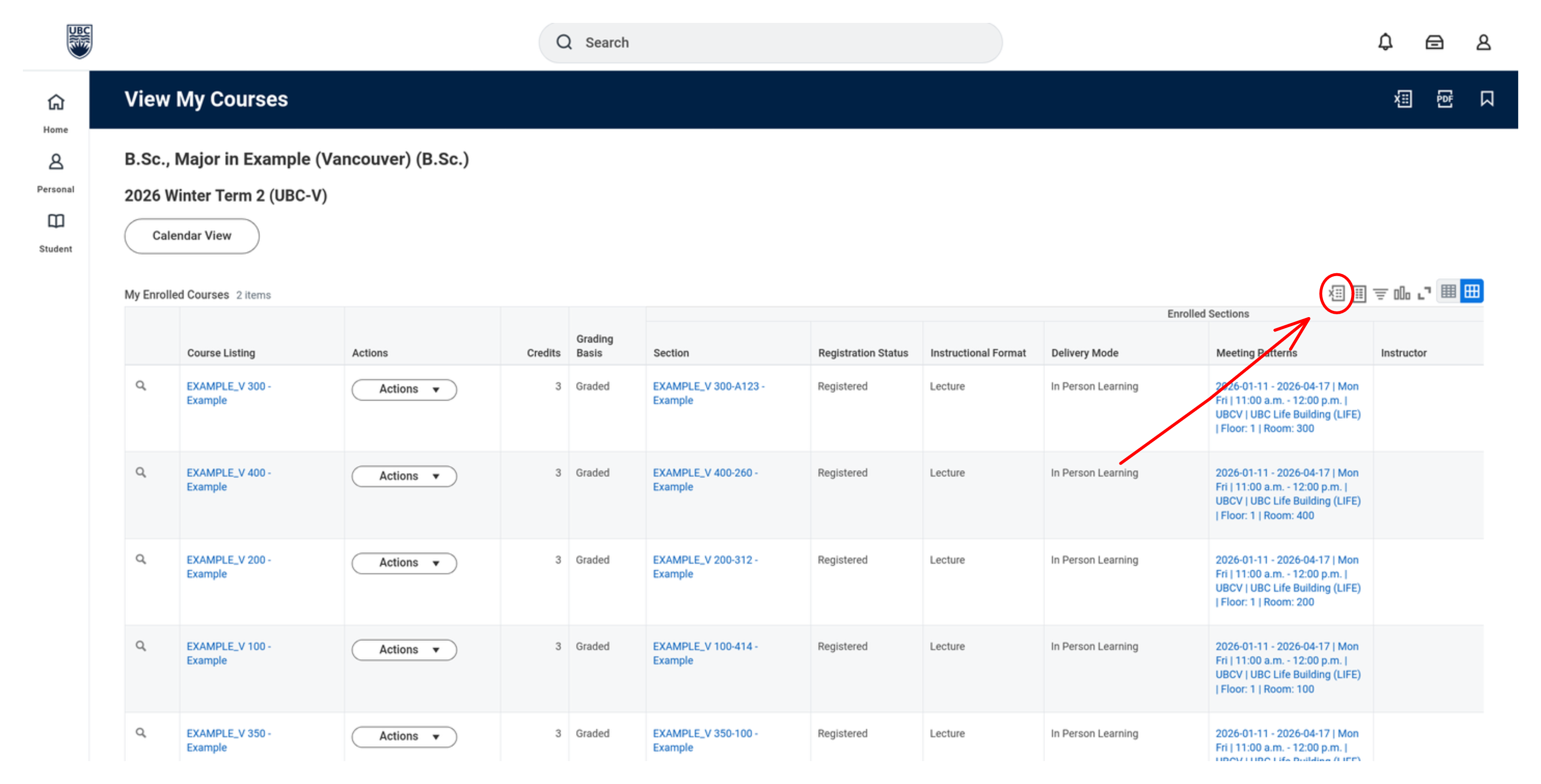
Ensure you're viewing the correct academic session (e.g., 2026 Winter Term 1). Click the Export to Excel icon in the top right of the 'My Enrolled Courses' table
- 7
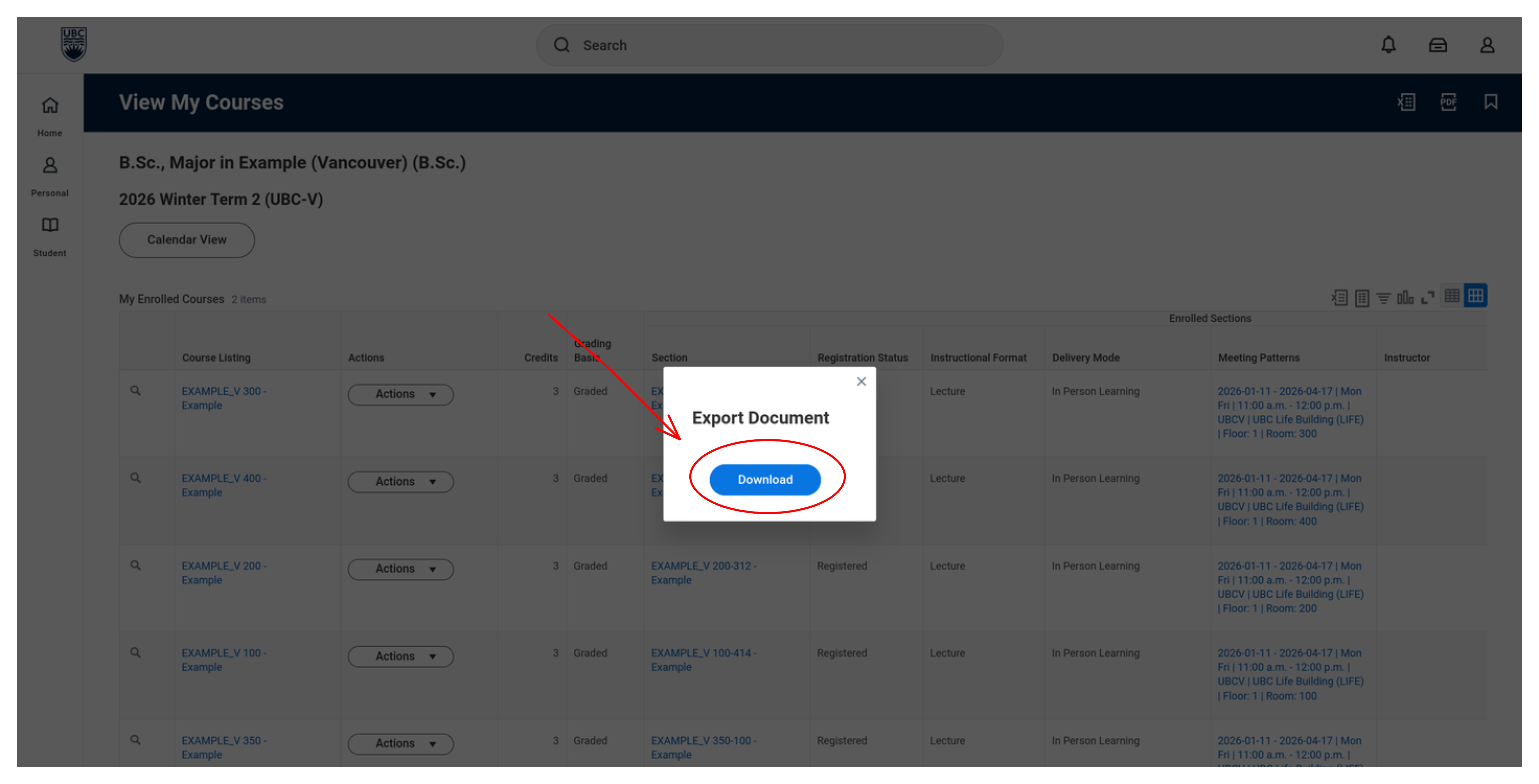
Press the download button and upload the resulting file into the tool
Saved Schedules
- 1
Log in to your Workday account
- 2
Navigate to Student in the sidebar
- 3
Under Student, select Academics
- 4
Under Academics, select Registration & Courses
- 5
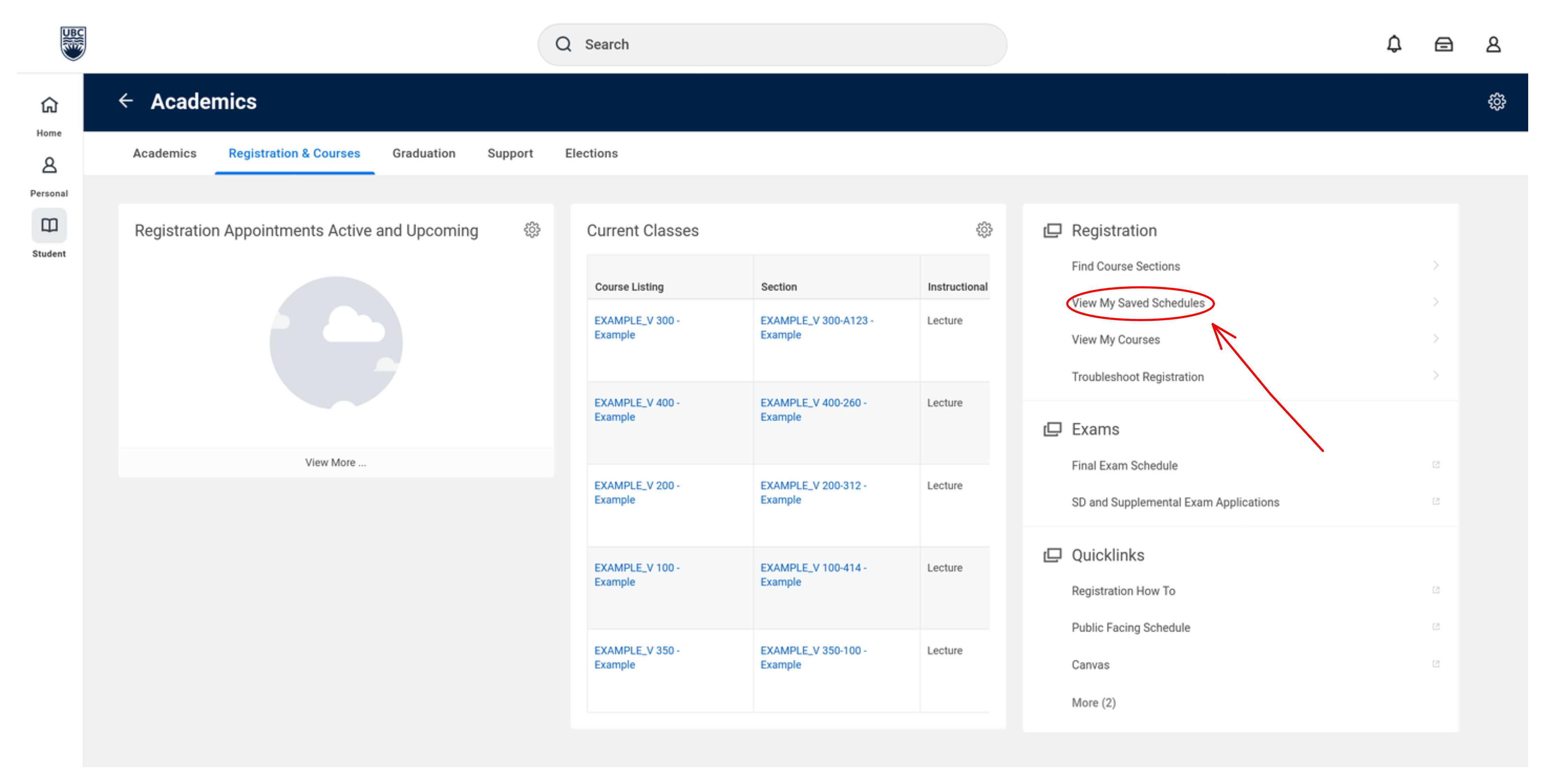
Under Registration, select View My Saved Schedules
- 6
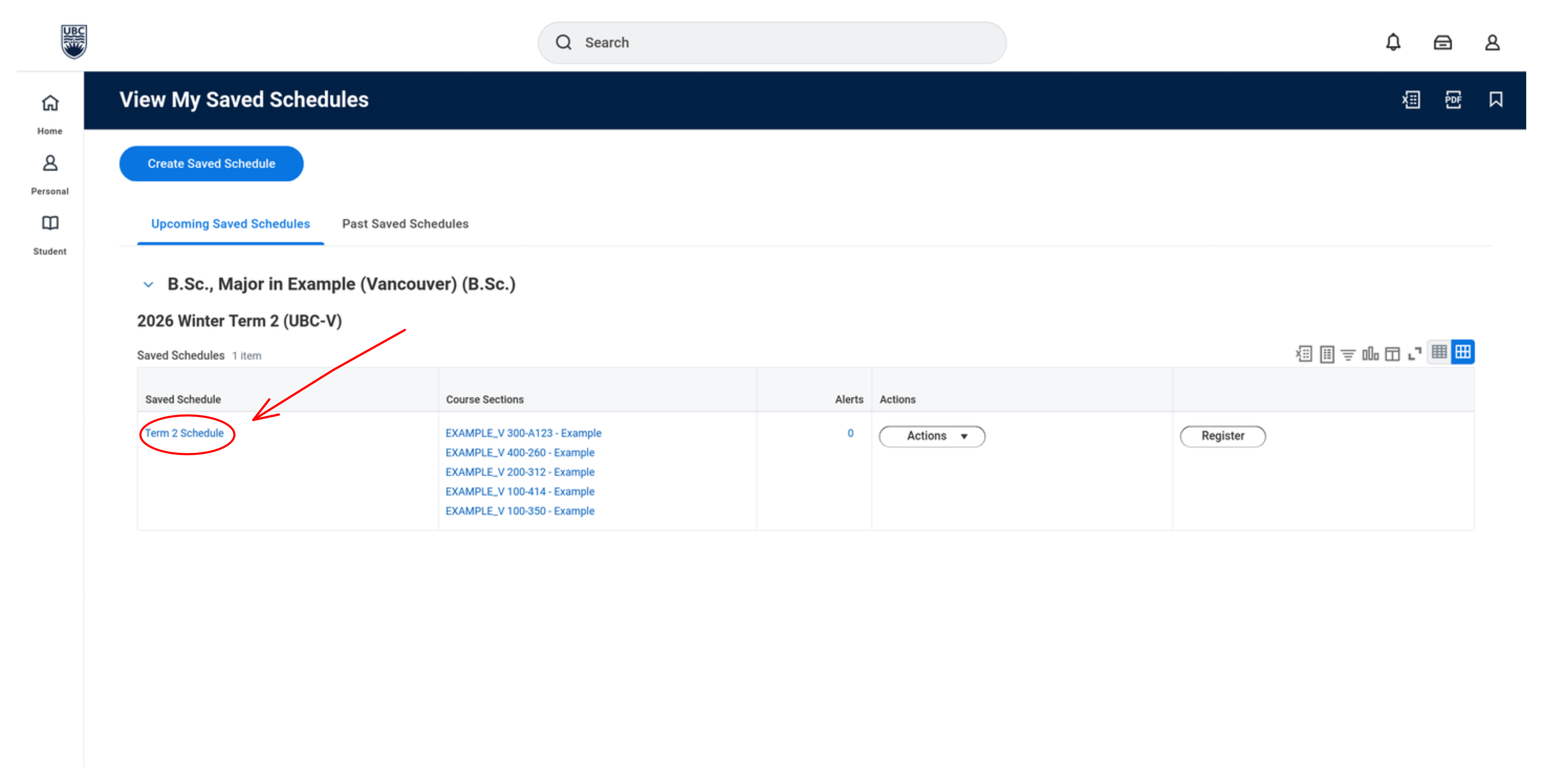
Select your saved schedule for the correct academic session (e.g., 2026 Winter Term 2)
- 7
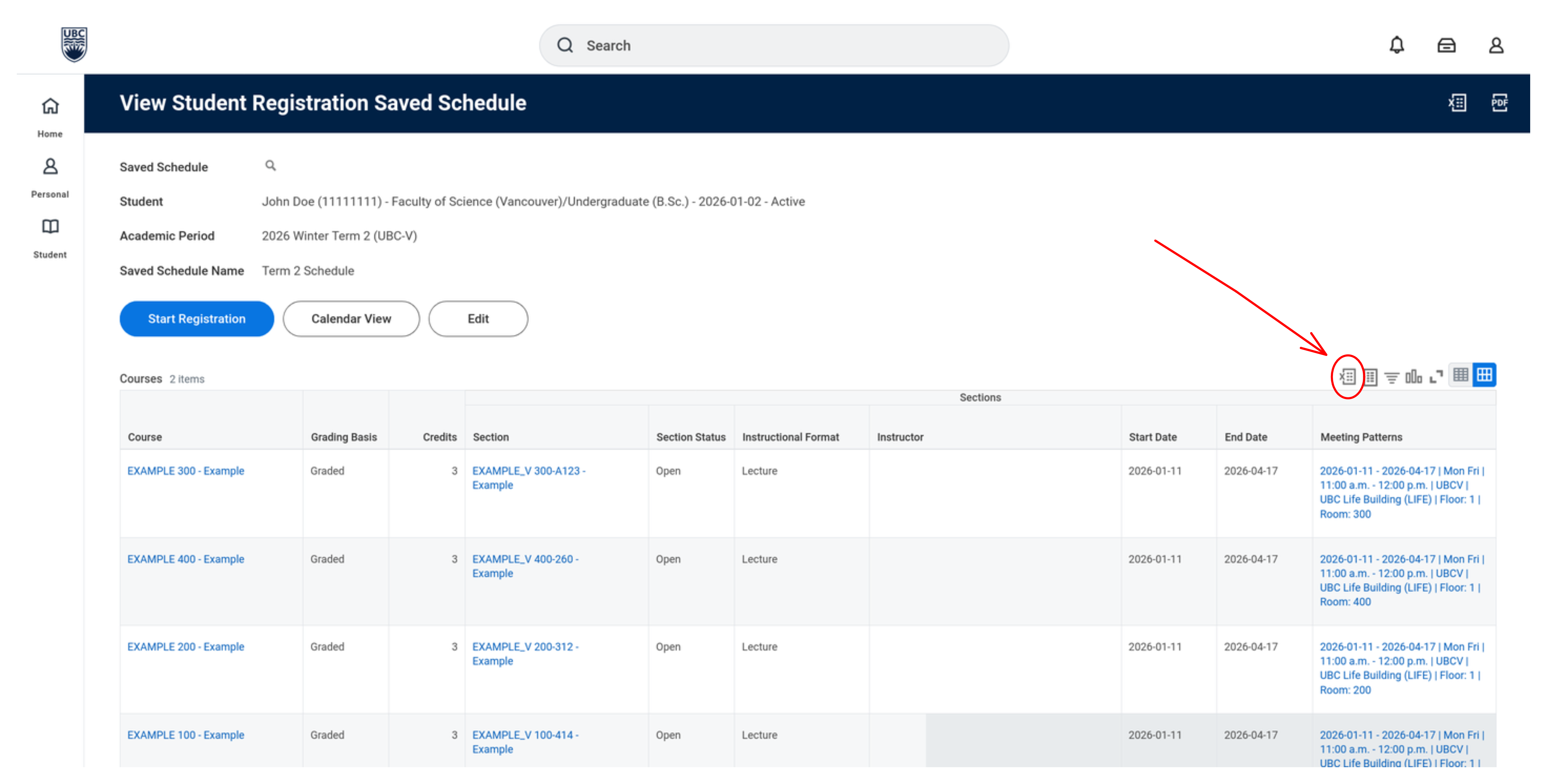
Click the Export to Excel icon in the top right of the My Enrolled Courses table
- 8
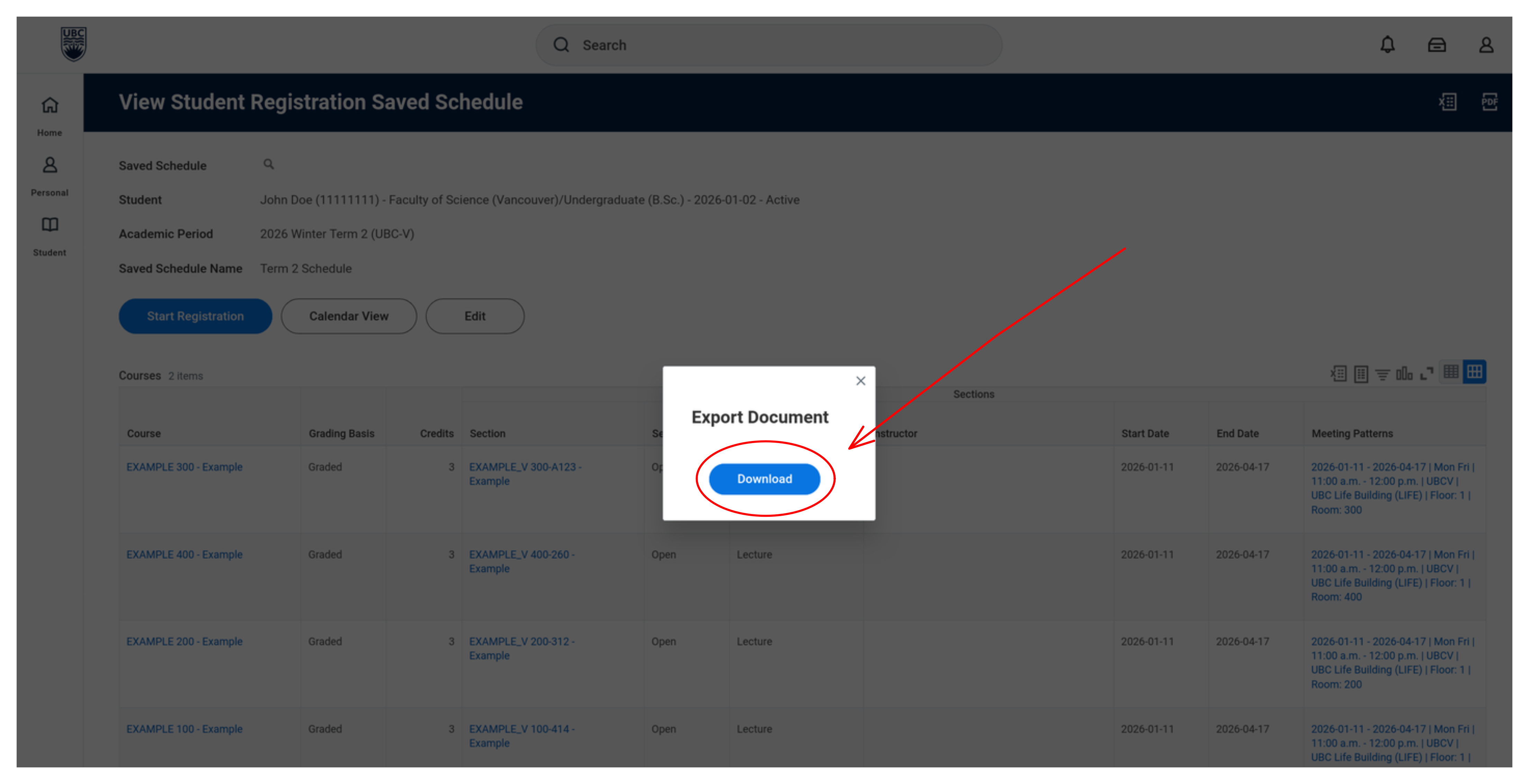
Press the download button and upload it into the tool
Import to Your Calendar
Once you've generated your .ics file, import it into your preferred calendar application:
Tips & Troubleshooting
Missing course?
If a course doesn't appear in your calendar, it may not have a defined meeting pattern (scheduled time). This is uncommon. The best solution is to add the course manually to your calendar application.
Wrong times?
Ensure both your Workday account and personal calendar are set to the same timezone. Mismatched timezones can cause classes to display at incorrect times.
Keep it updated
The .ics file is a static snapshot. If you add, drop, or modify a course, you must re-export your schedule and import the new file.
Organize by term
Create a dedicated calendar in your app for each academic term. This makes it easy to delete or hide all your classes at once if you need to re-import a fresh schedule.